

Key Takeaways
A touchscreen problem can come from a temporary software glitch, a power issue, or a fault that needs diagnosis. Start with safe checks, note what changes, and use guidance made for your vehicle.
- Observe whether the display is blank, frozen, or intermittently responsive.
- Park before troubleshooting, then try a careful restart and screen cleaning.
- Check for electrical symptoms and review relevant system settings.
- Use reset and update instructions that match the vehicle’s model and year.
- Seek professional diagnosis if the problem returns or basic checks do not help.
Identify the touchscreen problem
A screen that stops responding can make routine controls harder to use, but the symptom alone rarely identifies the cause. Before changing settings or attempting a reset, note exactly what happens and when. A few clear observations can help distinguish a temporary interruption from a recurring fault.
Check whether the screen is blank, frozen, or responding inconsistently
Notice whether the display has gone completely dark, remains lit but frozen, or reacts only sometimes. If it is lit, check whether the picture changes while touch input does not; that is different from a screen that fails to show an image at all. These details are useful when you describe the problem to a technician.
Note which features are affected, such as navigation, audio, or the rear camera
Check whether the issue appears limited to touch input or also affects other functions shown on the display. Make a note of which features you tried and whether any still worked. Avoid repeatedly tapping the screen or making adjustments while driving; wait until the vehicle is safely parked.
Look for patterns related to startup, temperature, or recent changes
A short record can reveal whether the issue occurs every time or only under particular circumstances. Compare the timing with startup, a long drive, a change in conditions, or a recent phone or accessory connection. The notes below help organize what you observe without assuming a cause.
| What you notice | What to record |
|---|---|
| Screen is blank | Whether other display functions appear to work |
| Touch input freezes | When it began and whether it returns on its own |
| Response is inconsistent | Which areas or functions seem affected |
| Problem repeats | Whether it follows startup or a recent change |
Use the pattern as a description, not a diagnosis. For additional background on possible touchscreen symptoms, see this overview of common freezing causes. If the behavior is inconsistent, the timing and affected functions may be more useful to a service professional than a guess about the underlying fault.
Try safe quick fixes
Start with steps that do not require tools or changes to vehicle settings. The safest first move is to stop somewhere appropriate and give the system a chance to recover. A restart or a clean screen may help with a temporary issue, but neither rules out an electrical or hardware fault.

Park the vehicle before troubleshooting the infotainment system
Pull over in a safe place and put the vehicle in park before checking the display. Do not try to troubleshoot while moving, especially if you would need to look away from the road or use a control that affects driving. If you cannot stop safely, leave the screen alone until you can.
Restart the vehicle and allow the system time to reboot
Once parked, follow the normal shutdown and restart process for the vehicle, then allow the display time to come back up. Avoid repeatedly cycling the ignition or pressing random button combinations; reset methods can vary by system. A general guide to troubleshooting an unresponsive touchscreen may offer context, but use vehicle-specific instructions for any reset.
Check for a simple obstruction, dirty screen, or connected-device issue
A smudge or an object touching the display can make it harder to tell whether the screen is responding. Wipe it gently with a clean, soft cloth and remove anything resting against it. If a phone or accessory is connected, disconnect it only after parking and see whether the behavior changes.
Keep the first checks simple and reversible. Cleaning the display, removing an obstruction, and temporarily disconnecting an accessory can help narrow down what changed, without opening panels or disturbing wiring. If the touchscreen remains unresponsive, move on to settings and power symptoms rather than repeating the same steps.
Check power and system settings
A display can misbehave for reasons beyond the screen itself, including a broader power or electrical concern. Look for other symptoms at the same time, and avoid treating one isolated glitch as proof of a weak battery. The purpose of these checks is to gather useful context and rule out simple settings or connection issues.
Look for signs of a weak battery or other electrical problems
Consider whether other electrical features have also behaved unusually, or whether the vehicle has shown a warning message. If several systems seem affected, mention that when arranging service rather than focusing only on the touchscreen. Do not attempt electrical testing or fuse replacement unless the vehicle instructions say it is safe and you know how to do it.
Review display, audio, and connectivity settings
If the screen responds enough to navigate, review only the settings relevant to the symptoms you observed. Check whether the display, audio, or connection behavior changed recently, and avoid altering several options at once. The Touch infotainment FAQs cover settings, connectivity, and software-update topics; confirm that any guidance matches your vehicle’s system.
Disconnect phones and accessories to rule out interference
A connected device can add another variable when diagnosing an intermittent issue. After parking, disconnect phones and accessories, then observe whether the screen behaves differently during normal use. Change one thing at a time so that any difference is easier to interpret.
Keep this check controlled: note what was connected, what you removed, and whether the symptom changed. If the display is still faulty with devices disconnected, that makes an accessory-related explanation less likely, though it does not establish a different cause. Leave wiring and vehicle-side connections to a qualified technician.
Use model-specific reset and update options
Reset and update instructions are not universal across vehicles or infotainment systems. Check the model year and system type before following a procedure, especially if it involves buttons, settings, or a longer shutdown. A guide for a different setup may not apply, so treat system-specific information as a starting point rather than a substitute for the vehicle’s instructions.
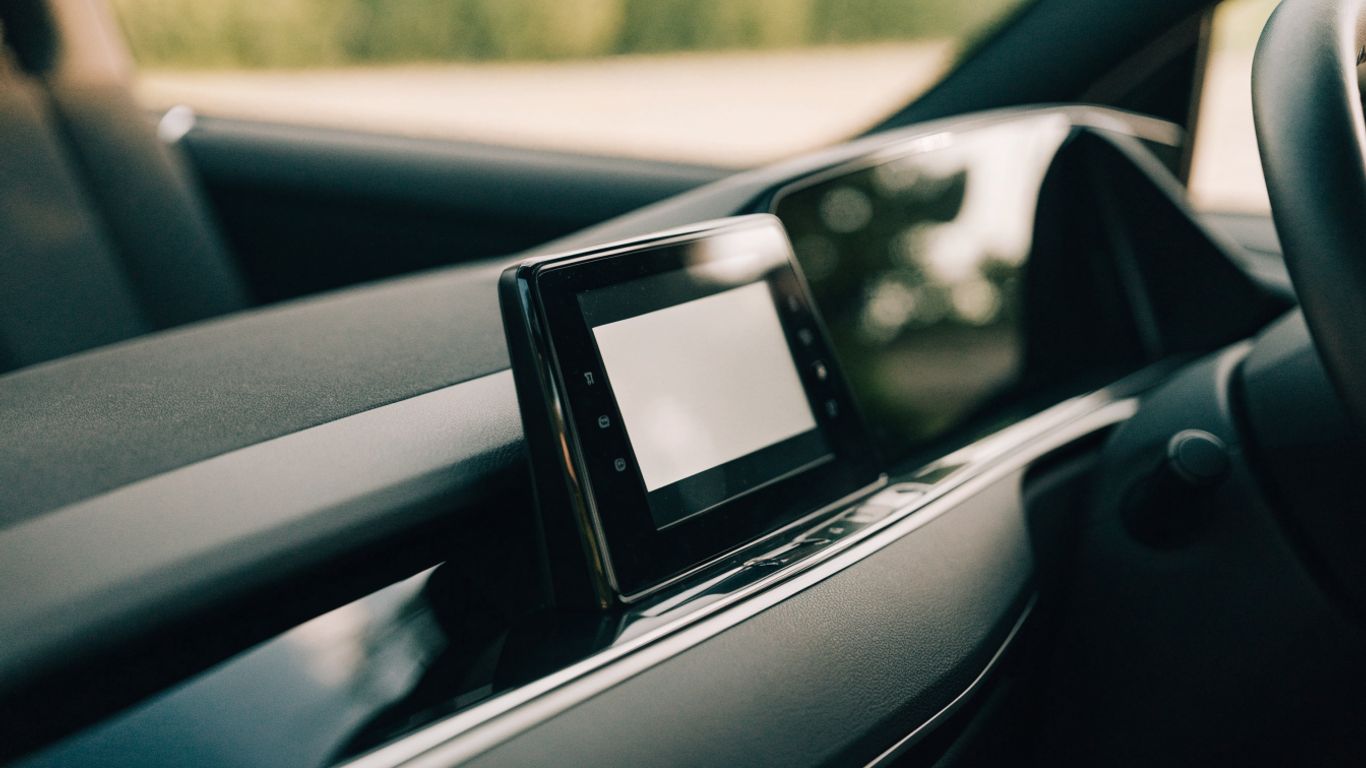
Find the correct reset procedure for your Land Rover model and year
Look up the instructions for the exact model year and system in the owner information or other vehicle-specific guidance. Avoid trying a reset sequence found for a different model; the controls and steps may not match. A reset can also change settings, so understand the instructions before proceeding.
Check whether an infotainment software update is available
Use the vehicle’s official information channels to check whether an update applies to your system. Availability and installation steps can vary, and an update should not be started in a way that distracts you from driving or leaves you unsure of the process. Keep a note of any update already attempted and what happened afterward.
Follow Touch Pro or other system guidance for your vehicle
For vehicles equipped with Touch Pro, use the Touch Pro setup guide for system setup information, and confirm the instructions fit the vehicle in question. Other system types may have different guidance. Do not assume that a procedure described for Touch Pro applies to every Land Rover model.
After checking the relevant instructions, make one change at a time and see whether the original symptom returns. If a reset or update does not help, record that outcome rather than repeating it without guidance. That history can save time during a service appointment.
Decide when professional diagnosis is needed
Basic checks have limits, and a persistent touchscreen fault may require equipment or expertise that is not available to a driver. Professional help is appropriate when the problem keeps returning, affects several functions, or appears alongside warning messages. If the display is needed for an important driving task, do not rely on an unreliable screen as though it were fixed.
Watch for recurring freezes, warning messages, or repeated restarts
Record how often the screen freezes and whether it recovers by itself or restarts repeatedly. Note any warning messages exactly as they appear, without guessing what they mean. A recurring fault deserves attention even if a restart seems to restore the display temporarily.
Ask a technician to inspect fuses, wiring, and electrical connections
If you suspect a power or connection issue, ask a qualified technician to assess it. Avoid pulling fuses, removing trim, or probing wiring without the correct instructions and experience. Share any related electrical symptoms and explain which checks you have already tried.
Consider screen or infotainment hardware faults if basic steps fail
When safe checks, suitable settings reviews, and model-specific guidance have not resolved the issue, the screen or another infotainment component may need professional diagnosis. That is a possibility, not a conclusion that can be reached from the symptom alone. Bring your notes and let the technician determine what needs testing.
Prevent the problem from returning
Not every touchscreen fault can be prevented, but good habits can make problems easier to spot and resolve. Keep track of changes rather than repeatedly experimenting with settings. A short, accurate record also gives a service professional a clearer starting point if the issue returns.
Keep software and connected-device settings up to date
Check for applicable updates using guidance for the vehicle’s system, and review device connections when you make changes. Do not assume that every update or connection setting is right for every model. If you are unsure, consult the appropriate vehicle instructions before changing anything.
Use compatible cables and accessories
Choose cables and accessories that are suitable for the devices and vehicle, and replace damaged items rather than continuing to use them. When a problem appears after adding an accessory, disconnect it while parked and note whether the screen’s behavior changes. This is a useful comparison, not proof that the accessory caused the fault.
Record symptoms and repair attempts before a service visit
A concise log makes it easier to explain an intermittent issue. Include what the display did, when it happened, what was connected, and which safe steps you tried. Keep the notes focused on the vehicle so a technician can quickly see the sequence of events.
- Write down the date and circumstances of each occurrence.
- Record which display functions were affected and any warning messages.
- Note changes to settings, connected devices, or software.
- List each restart or other troubleshooting step and its result.
This record helps separate repeated symptoms from one-off interruptions. It also reduces the chance of repeating steps that already failed, and gives the technician a clearer account than a general description such as “the screen stopped working.”
Conclusion
A touchscreen that stops responding can be frustrating, but careful observation and a few safe checks are a sensible place to start. Park before troubleshooting, follow instructions for the exact system, and arrange professional diagnosis if the fault persists or returns. Clear notes can make the next step more straightforward.
Frequently Asked Questions
Why is my vehicle touchscreen not responding?
Possible causes include a temporary system issue, a connection or power concern, a setting, or a component fault. The symptom alone cannot identify which one is responsible.
Should I restart the vehicle if the screen freezes?
A normal restart may help if the issue is temporary. Park safely first, follow the vehicle’s instructions, and avoid repeated or improvised reset sequences.
Can a dirty screen stop touch input?
Dirt, smudges, or an object resting against the screen can interfere with touch input or make it harder to judge the response. Clean gently with a soft cloth and remove any obstruction.
Is it safe to troubleshoot the touchscreen while driving?
No. Stop in a safe place and put the vehicle in park before checking the display, changing settings, or disconnecting a device.
Should I disconnect my phone if the screen is acting strangely?
You can disconnect it while parked and see whether the behavior changes. Note the result, but do not assume that a connected phone was the cause.
When should I ask a technician to inspect the system?
Seek professional help if the problem keeps returning, the screen repeatedly restarts, warning messages appear, or basic safe checks do not resolve the issue. Electrical and hardware checks are best left to a qualified technician.
What information should I bring to a service appointment?
Record when the problem happens, what functions are affected, any warning messages, connected devices, and troubleshooting steps already attempted. Specific observations are more useful than a guess about the cause.