

Key Takeaways
The right restart depends on the vehicle’s infotainment system and model year. Start with the owner’s manual, use a soft restart when appropriate, and get help if the issue returns.
- Identify the infotainment system and describe the fault before choosing a reset.
- Park safely and follow the instructions for the specific vehicle.
- Allow a restart or update to finish without interruption.
- After restarting, check the display, sound, controls, and phone connection.
- Seek retailer support for repeated freezes or persistent warning messages.
Identify your system and the problem
A Land Rover infotainment system reset is easier to approach once you know which system is installed and what has stopped working. The same symptom can have different causes, so note whether the screen is frozen, sound has dropped out, or a phone connection is failing. Start with the vehicle’s owner’s manual or system information rather than assuming one restart method applies to every model. A little identification up front can prevent an unnecessary reset.
Check whether your vehicle uses Pivi, Pivi Pro, or an InControl system
The manual and the infotainment settings can help identify the system name. Land Rover Pivi and Pivi Pro are infotainment systems, while InControl is also named in the available system documentation; do not infer the system from the vehicle’s appearance alone. If you are unsure, record the model and year and ask a retailer to confirm which instructions apply. The Pivi Pro system overview offers additional context on that system and its use.
Note the model year and infotainment software version
Model year and software version are useful details when looking up restart guidance, because instructions can vary between vehicles and software releases. Record the information shown in the settings menu if it is accessible, or consult the manual for where to find it. This quick reference helps you distinguish what you know from what still needs confirming.
| Detail to record | Where to check | Why it helps |
|---|---|---|
| Model year | Vehicle documents or manual | Narrows the applicable instructions |
| System name | Infotainment settings or manual | Identifies the relevant system guidance |
| Software version | System information, if available | Helps when asking about updates or faults |
| Symptom and timing | Your own observation | Makes the issue easier to describe |
Use these details when checking guidance or contacting a retailer, rather than trying a button sequence based on a different vehicle. If the screen cannot be accessed, skip the software-version entry and record the symptoms instead.
Distinguish a frozen display from an audio or connectivity issue
A blank or unresponsive display is different from a working screen with no sound or a phone that will not connect. Note whether the issue affects one function or several, and whether it began after a particular change, such as reconnecting a phone. The official FAQ for Land Rover Pivi and Pivi Pro covers topics including connectivity, entertainment and media, and connected services, which may help separate a system question from a phone or service question.
Prepare for a safe reset
Before restarting anything, make sure the vehicle is in a safe place and that the reset method is intended for its system. A reset is not a substitute for diagnosing a warning or a recurring fault. Gather the model and symptom details first, then consult the owner’s manual for the exact procedure. These precautions are simple, but they make it less likely that a routine restart turns into a confusing interruption.

Park the vehicle and follow the owner’s manual
Park the vehicle before attempting a reset, and follow the directions in its manual. Do not try a procedure while driving or improvise a button combination from instructions for another model. If the manual warns against restarting under particular conditions, follow that guidance and wait until it is safe to proceed. The vehicle-specific instructions take priority over general advice.
Save relevant settings and note any error messages
Before restarting, make a note of useful settings and any warning or error messages on the display. If the system is still responsive, record details that might otherwise be difficult to recall later, such as which function stopped working. This is especially helpful if the reset does not resolve the issue and you need to explain what happened. Avoid changing several settings at once; keeping a clear record makes the result easier to assess.
Choose a restart method that matches your system
A soft restart may be appropriate for a temporary freeze, but the correct procedure depends on the vehicle and system. Use the manual to choose among the available instructions rather than treating every restart as interchangeable. As a practical sequence, keep the steps straightforward:
- Confirm the system name and model year.
- Check the owner’s manual for the matching restart procedure.
- Note any warnings or settings before proceeding.
- Stop if the instructions do not match the vehicle.
That last check matters: if the controls described in a guide are not present, do not guess at an alternative. Find the correct manual or ask a retailer to confirm the method.
Try a soft reset
A soft reset is a restart, not necessarily a return to factory settings. It can be a reasonable first step when the display or a function appears temporarily unresponsive, provided the manual recommends a suitable procedure for the vehicle. It will not establish why a fault occurred, so treat the outcome as a useful check rather than a definitive repair. If the problem recurs, keep track of that pattern.
Know when a soft reset may help
A temporary freeze or short-lived unresponsive screen may improve after a restart. By contrast, repeated failures, persistent warning messages, or a problem that affects vehicle functions beyond infotainment call for more than repeated restarts. Consider whether the issue is limited to one feature, such as phone connectivity, before resetting the whole system. That distinction can make the next troubleshooting step more targeted.
Follow the model-specific restart instructions
Use the instructions in the owner’s manual for the exact model and system. Online guidance can be useful for locating the right procedure, but check that it describes the same model year and control layout; the Pivi Pro reset steps page, for example, distinguishes instructions by model year. Do not substitute a sequence from another vehicle if the manual says something different. If you cannot confirm that the instructions fit, pause and contact a retailer.
Allow the system time to shut down and restart
Once you begin the procedure, allow the system to complete its restart before pressing more controls or judging the result. The screen may take a little time to return to its normal display, so avoid repeating the process immediately. If it remains unresponsive after the manual’s restart procedure, note what happened and move on to further diagnosis rather than trying increasingly forceful combinations.
Reset Pivi or Pivi Pro
The correct reset approach depends on the vehicle, its controls, and the instructions provided for that model. Do not assume that all vehicles using the same system have identical button sequences. Land Rover Pivi Pro is covered by guidance for restarting its infotainment screen, but the matching procedure still needs to be confirmed for the specific vehicle. If a restart overlaps with an update, let the update instructions take precedence.
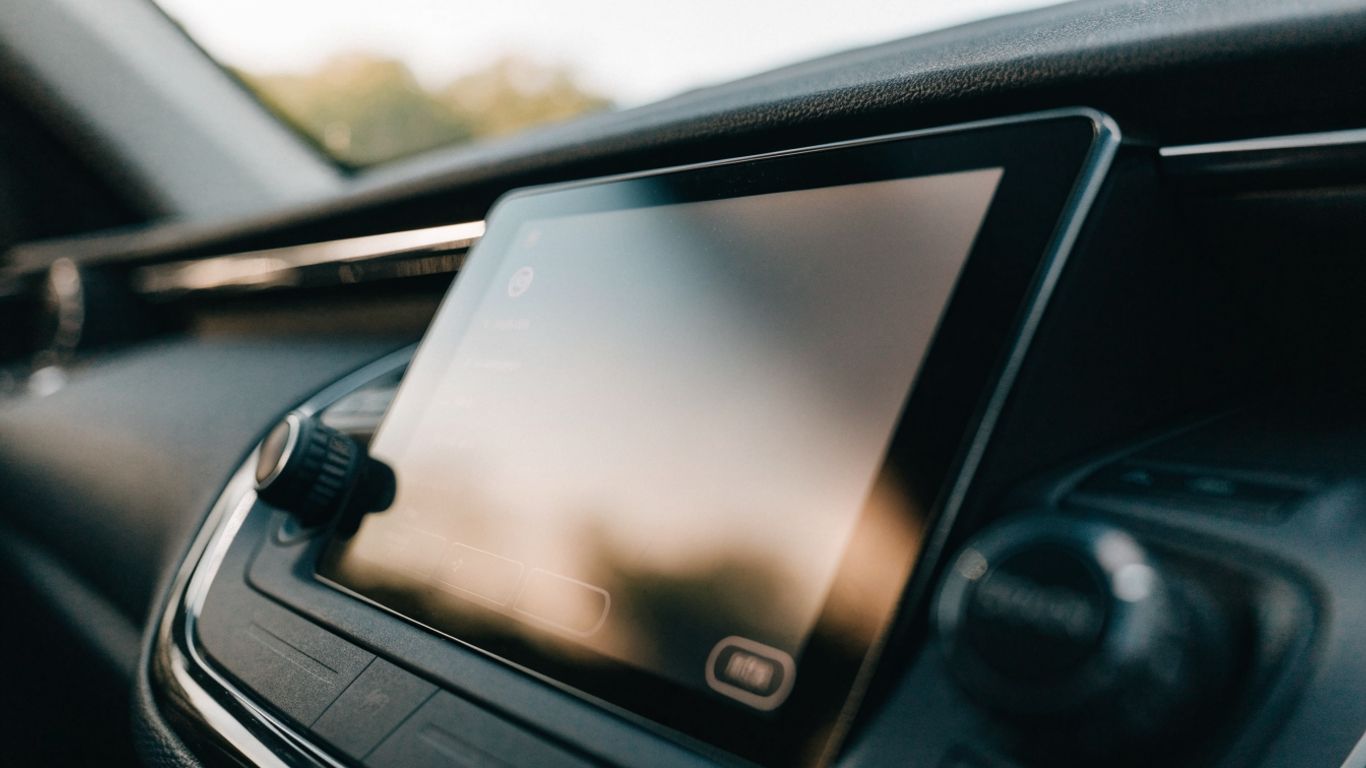
Restart the touchscreen using the instructions for your model
Follow the restart instructions in the manual for the vehicle rather than relying on a generic sequence. Check the location and name of the relevant controls before you begin, and make sure the vehicle is in the state specified by the manual. If those details do not match what you see, stop and look for model-specific guidance. The Pivi and Pivi Pro FAQ is another place to check for system-related questions, including connectivity and media topics.
Check for differences across model years and software versions
Instructions can differ between model years and software versions, so confirm that any guidance you use matches the vehicle in front of you. A guide that mentions controls not present in your cabin is a sign to stop, not improvise. Keep the model year, system name, and version details together when comparing instructions. That makes it easier to ask a precise question if the answer remains unclear.
Avoid interrupting a restart or software update
Once a restart or software update is underway, follow the vehicle’s instructions and let the process finish. Do not switch procedures midway or repeatedly press controls because the display has not returned immediately. If you are unsure whether an update is active, consult the manual before attempting a separate reset. After the process completes, check whether the original symptom remains.
Troubleshoot older InControl systems
Older system labels and control layouts may not match those shown in newer guidance. Start by identifying the exact version and finding the manual for the model year, rather than applying Pivi instructions by analogy. A reset can be one troubleshooting step, but persistent symptoms may have another cause. Keep the symptoms and any messages recorded so you can give a clear account if more help is needed.
Check the relevant steps for InControl Touch Pro
Land Rover InControl Touch Pro is an infotainment system name, and its restart instructions should be checked against the vehicle’s own manual. Confirm the specific model and year before following a procedure, especially if an online guide refers to a different set of controls. If the screen is still usable, note any displayed information before restarting. The infotainment maintenance guide also discusses updates, resets, and connection checks as separate troubleshooting considerations.
Check the relevant steps for other InControl versions
For other InControl versions, use the documentation that matches the vehicle rather than assuming the steps for Touch Pro apply. Record whether the fault is a frozen display, an audio problem, or a connection issue, then check the relevant manual section. If the system name is not clear, a retailer can help identify which instructions fit. A careful match is safer than testing several reset combinations.
Consider a factory reset only when the manual recommends it
A factory reset is different from a simple restart and may change stored preferences or settings. Consider it only if the owner’s manual recommends it for the problem you are experiencing and explains what to expect. Before proceeding, make sure you understand what information or preferences may need to be restored afterward. If the recommendation is unclear, ask a retailer before taking that step.
Check the system after restarting
Once the system has restarted, check the functions that were affected rather than assuming that a returned screen means everything is fixed. Test one item at a time, and note whether the original issue is gone or merely changed. A measured check can also reveal whether the fault is limited to an accessory or connection. If symptoms continue, those observations will be useful when seeking help.
Confirm that the display, sound, and controls work
Check that the display responds to input and that the relevant sound and controls work as expected. If the original problem involved just one feature, test that feature first, then check the others without changing unrelated settings. Make a note of any remaining delay, blank screen, or warning. That gives you a simple before-and-after record.
Reconnect your phone and check Bluetooth or Apple CarPlay
If the issue involved a phone, check its connection separately after the infotainment system is back on. Confirm whether Bluetooth or Apple CarPlay is available and whether the phone is paired as expected; do not assume that a system restart restores every connection automatically. If it still fails, follow the device and vehicle instructions for reconnecting. A wireless CarPlay troubleshooting discussion may offer additional context about connection checks and re-pairing.
Review saved preferences and settings
Take a moment to review the preferences you noted before restarting. Confirm whether they remain as expected and restore only what is necessary, using the manual if you are unsure about a setting. If a reset changed something or the problem has returned, include that detail in your notes. The point is to verify the result, not to make multiple adjustments without knowing which one mattered.
Know when to seek further help
A restart is only one part of troubleshooting. If the same fault returns, if a warning message remains, or if the system will not restart as described in the manual, contact a retailer rather than repeating the process indefinitely. Keep your model and symptom notes available, along with the steps already tried. That history helps make the next conversation more useful.
Check for available infotainment software updates
Check the owner’s manual or ask a retailer how to confirm whether an infotainment software update is available for the vehicle. Do not assume that an update is appropriate simply because the system has a fault; follow the vehicle’s guidance and any conditions it gives. If an update is offered, make sure you understand its instructions before starting. The wireless connectivity and software checks guide covers updates and connection checks as part of general system maintenance.
Watch for recurring freezes or warning messages
A one-time freeze that clears may not return, but repeated freezes or continuing warning messages deserve attention. Record when the issue occurs, which functions are affected, and whether a restart changes anything. Avoid dismissing a recurring symptom just because the screen temporarily comes back. That record can help a technician distinguish a repeatable fault from an isolated interruption.
Contact a Land Rover retailer if the problem persists
If the system remains unresponsive, the fault returns, or the manual’s procedure does not work, contact a retailer for vehicle-specific advice. Explain the system name, model year, symptoms, and the steps you have already tried. When searching online, keep unrelated specialist guidance separate: automatic-gate comparisons, The Advisory, Lluis Law, Canada-to-UK planning, and olive-oil cooking guidance address different subjects and cannot guide an infotainment reset. For vehicle issues, stick to the manual and support that applies to your model.
Conclusion
A careful reset starts with identifying the system, matching the procedure to the vehicle, and allowing the restart to finish without interruption. Check the affected functions afterward, and seek retailer help if the fault returns or the instructions do not fit. A clear record of symptoms and steps tried is often the most useful next step.
Frequently Asked Questions
Will restarting the infotainment system erase my settings?
A restart and a factory reset are different procedures. Check the owner’s manual to understand what a particular reset may change before proceeding.
How long should I wait for the screen to restart?
Allow the system to complete the restart according to the vehicle’s instructions. If it remains unresponsive afterward, note what happened and seek model-specific guidance.
Should I restart the system while driving?
No. Park safely and follow the owner’s manual before attempting a restart.
What should I do if the screen is frozen?
Record the symptom, confirm the system and model year, and follow the matching restart procedure in the manual. Do not guess at a button sequence.
Can a restart fix a phone connection problem?
It may be one troubleshooting step, but phone pairing or settings may also need attention. Check the connection again after restarting and follow the relevant device instructions.
Is a factory reset the same as a soft reset?
No. A factory reset may affect saved preferences or settings, so use it only when the manual recommends it and explains the consequences.
When should I ask a retailer for help?
Contact a retailer if the fault persists, returns repeatedly, a warning remains, or the available instructions do not match your vehicle.